English
 Arabic
 French
 Spanish
 Portuguese
 Deutsch
 Turkish
 Dutch
Dutch
 Italiano
 Russian
 Romaian
 Portuguese (Brazil)
 Greek
Greek
Sustainable Practices in Making Artisanal Perfumes
Other |
2026-05-24 19:14:34
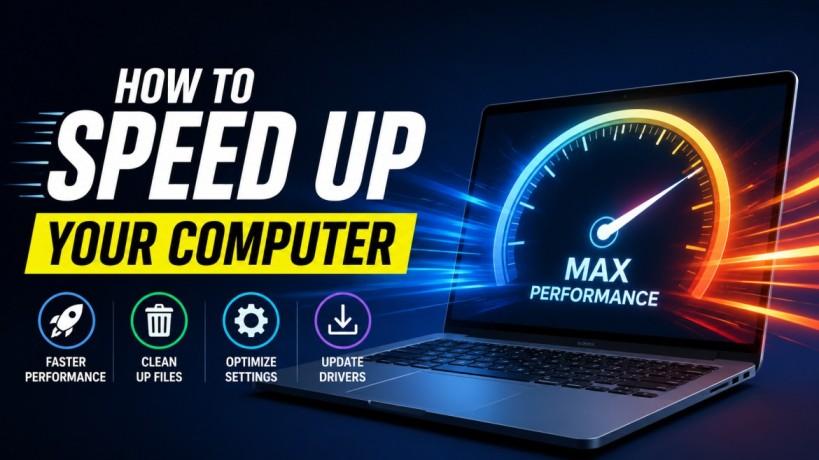
Nothing tests your patience quite like a sluggish PC. Whether you are trying to smash a work deadline, edit a video, or just stream your favorite show, a lagging system can bring your productivity to a screeching halt. Over time, every system accumulates digital clutter that slows it down. Fortunately, you don’t need to buy a brand-new machine to get that day-one speed back.
If you are wondering how to speed up your computer, you are in the right place. In this comprehensive guide, we will walk you through actionable, step-by-step slow computer solutions to restore your system’s performance.
Many of us leave our computers running for days or even weeks at a time. While putting your PC into sleep mode is convenient, it doesn't clear the system memory. A simple restart flushes out the RAM, closes background processes that might be stuck in a loop, and installs pending updates. Make it a habit to restart your device at least a few times a week.
One of the most common reasons a PC takes forever to boot up is a crowded startup menu. Many applications automatically configure themselves to launch the moment you turn on your machine.
To disable startup programs on Windows, open the Task Manager (Ctrl + Shift + Esc) and navigate to the Startup apps tab. Review the list and disable any software like game launchers, chat apps, or cloud sync tools that you do not need running immediately. This single step is one of the most effective Windows optimization tips available.
A clogged hard drive drastically hinders performance because your operating system needs free space to create temporary files and virtual memory. To clean up disk space, look through your storage and uninstall programs you no longer use.
Additionally, you can use the built-in Disk Cleanup tool on Windows. Type "Disk Cleanup" into the Windows search bar, select your main drive, and let the utility delete system files that are no longer necessary.
Every time you browse the web or run an application, your system creates data caches. Over time, these files pile up. To manually clear temporary files:
Press the Windows Key + R to open the Run dialog box.
Type %temp% and hit Enter.
Select all the files in the folder (Ctrl + A) and press Delete.
Cleaning out this digital junk helps optimize PC performance and frees up gigabytes of valuable storage.
Malware, spyware, and viruses run silently in the background, consuming massive amounts of CPU and memory capacity. Run a deep system scan using Windows Security or a trusted third-party antivirus program. Keeping your security software updated ensures that malicious scripts aren't stealing your processing power.
Windows comes with beautiful visual effects, smooth animations, and translucent windows. While visually appealing, these features eat up hardware resources on older or budget-friendly systems.
To prioritize speed over looks, search for "Adjust the appearance and performance of Windows" in the control panel. Select the option that says "Adjust for best performance." You will instantly notice a crisper, faster response time across your user interface.
Outdated software can introduce bugs and compatibility issues that drag down system speeds. Regularly check for system updates via Windows Update. Additionally, make sure your graphics card, chipset, and network drivers are up to date by visiting the manufacturer’s official website.
If you are still running your operating system on an old mechanical Hard Disk Drive (HDD), the single best hardware upgrade you can make is switching to a solid-state drive (SSD). SSDs read and write data significantly faster than traditional HDDs. Upgrading your drive will make your computer boot up in seconds and load applications almost instantly.
If you frequently multitask with dozens of browser tabs open while running heavy software, you might be running out of memory. To permanently how to speed up your computer during heavy workloads, consider an upgrade RAM solution. Moving from 8GB to 16GB of RAM allows your PC to handle intensive tasks simultaneously without breaking a sweat.
If you have tried everything and your PC still crawls, it might be time for a fresh start. Both Windows and macOS offer a "Reset This PC" feature. This reinstalls a clean version of the operating system while giving you the choice to keep your personal files or wipe everything clean. It is the ultimate reset button for a cluttered device.
It is a good practice to clear temporary files once a month. If you use your computer heavily for data-intensive work like video editing or gaming, doing it bi-weekly will help maintain peak performance.
An upgrade RAM strategy helps significantly if your computer slows down when you open multiple apps or browser tabs. However, if your computer is slow right from startup, the bottleneck is more likely your hard drive or startup applications.
Yes, it is perfectly safe. Disabling an app in the startup menu does not uninstall it or damage your system. It simply prevents the application from opening automatically when the computer boots up. You can still open the program manually whenever you need it.
Learning how to speed up your computer doesn't require a degree in computer science. By taking a few minutes to clean up your drive, manage background applications, and keep your software updated, you can breathe new life into your machine.